
Skip to content
Mernyx
Open menu

Mermaid Block Diagram Cheat Sheet

A wall of blocks, read from left to right.

Every picture on this page was drawn byMernyx, the native Mermaid editor for macOS. Not by a browser running Mermaid.js — the same renderer the app uses for its canvas.

Blocks and arrows

A block is a quoted label. The words between two blocks label the arrow that joins them.

block-beta
  a["A"] space:2 b["B"]
  a -- "checks" --> b
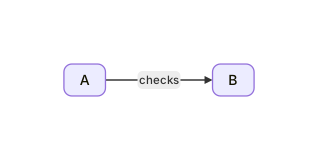
Two blocks, A and B, joined by an arrow labelled checks, with a gap of two spaces between them.Expand diagram

Columns

The columns keyword sets how many blocks fit on one row.

block-beta
  columns 3
  a["A"]
  b["B"]
  c["C"]
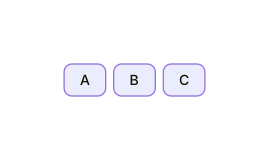
Three blocks, A, B and C, laid out in a single row.Expand diagram

Arrow blocks

An arrow is a block too. Its name carries the direction, and the angle brackets hold its label.

block-beta
  Frontend blockArrowId6<[" "]>(right) Backend
  space:2 down<[" "]>(down)
  Disk left<[" "]>(left) Database[("Database")]

A wide arrow from Frontend to Backend, a downward arrow below it, and a left-pointing arrow joining Disk to a database shape.Expand diagram

Styling blocks

classDef names a style, and class applies it to the blocks you name.

block-beta
  columns 2
  Frontend["Frontend"] Backend["Backend"]
  classDef front fill:#696,stroke:#333;
  classDef back fill:#969,stroke:#333;
  class Frontend front
  class Backend back
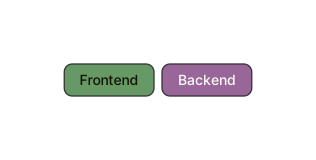
Two blocks, Frontend in green and Backend in grey, with their class definitions above them.Expand diagram

Draw it in Mernyx.

Open a .mmd file, move a node on the canvas, and the source comes with it. Native on macOS, no browser involved.

Diagram preview